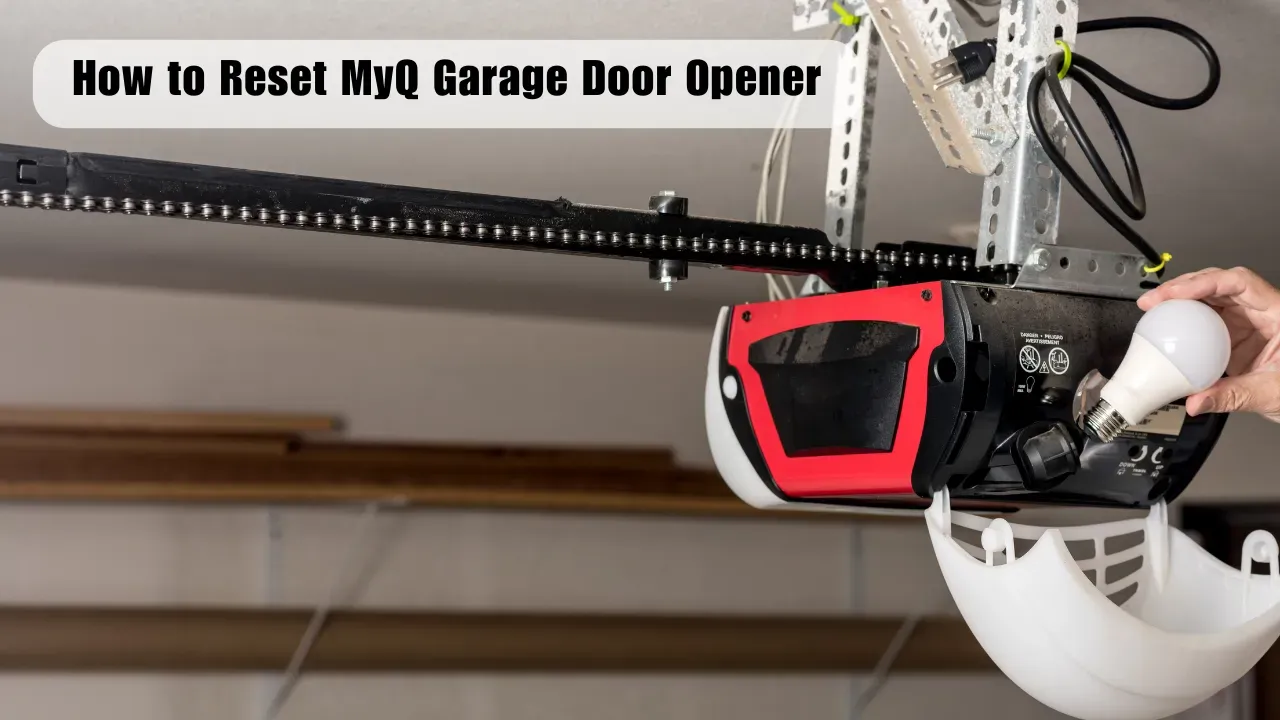
When a Reset Helps
A MyQ reset can restore app connectivity after a Wi-Fi change, a replaced router, a power interruption, or a lost device pairing. It does not repair a broken spring, a binding door, failed sensors, or a humming opener.
Stop using the opener if the door is crooked, unusually heavy, off the track, or making new grinding or popping sounds. Those conditions need opener repair or another door-system inspection.
Safe Reset Checks
- Confirm that the opener has power and the wall control is not locked
- Check that the home Wi-Fi network is working
- Look at the photo-eye sensors before testing another close cycle
- Use one normal opener attempt and stop if the motor strains
Typical MyQ Reconnection Steps
Exact button names vary by model. Use the opener manual or the LiftMaster/Chamberlain app instructions for your unit.
- Open the MyQ or manufacturer app and remove the previous opener pairing if it is stale.
- Put the opener into pairing or Wi-Fi setup mode using the learn or connect button shown in the model instructions.
- Select the current 2.4 GHz home network when the app requests it.
- Complete pairing and test the wall control before relying on the app.
Do not change force settings, bypass sensors, or use a reset to overcome a door that will not close. If the door reverses, start with the door will not close guide.
When to Call for Service
Call if the opener still will not pair, the door does not respond after a successful app connection, or the opener hums without moving the door. South Bay calls go to Santa Clara at (408) 290-5673.